User Interface#
Measmatic Main UI#
The Measmatic main user interface is structured into the three main sections as shown in Figure 2.1.
• Menu
• Toolbar
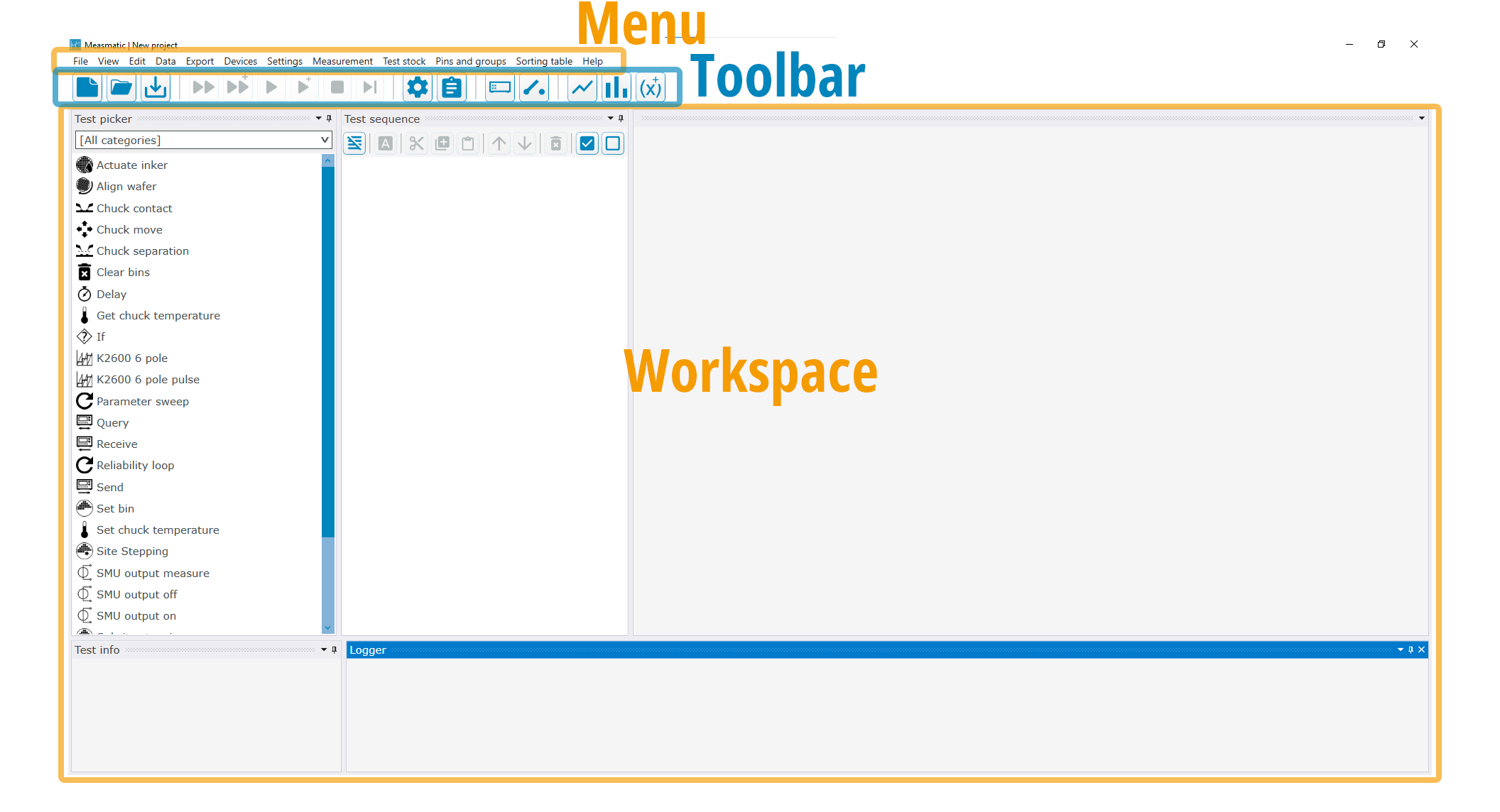
Main user interface
The menu bar gives access to all functions of Measmatic. The quick access toolbar gives access to the most important functions. The workspace can be adjusted by the user and shows different components (e.g. diagram, sequence) that are used within the current project.
Basic User Interaction#
The interaction with Measmatic can occur by mouse/keyboard input or by touchscreen gestures. Touchscreen interaction requires additional hardware. The following table lists the basic operations.
| Operation | Mouse/Keyboard | Touch Action | Touch Action Description (Win10 standard) |
|---|---|---|---|
| Data input | Keyboard | Screen Keyboard | - |
| Select | Left button click | Tap | Finger tapping on the screen |
| Action | Double click | Double Tap | Finger tapping on the screen twice |
| Context menu | Right button click | Tap and hold | Touching the screen for a few seconds |
| Drag | Left button + move | Finger drag | Move your finger over the screen |
| Scroll | Mouse wheel | Finger drag | Move your finger over the screen |
| Zoom | Mouse wheel | Zoom gesture | Move two fingers apart or together |
Input Operations