Package manager#
A Measmatic package (*.mmpkg) bundles tests, projects, Python devices, export scripts and additional files in a single file. Packages are used to transfer this content between Measmatic installations.
The package manager is opened via the menu File 
Package manager or the corresponding button in the toolbar.
Package manager window#
The list on the left shows the installed packages. The info area on the right shows the meta data and the content of the selected package.
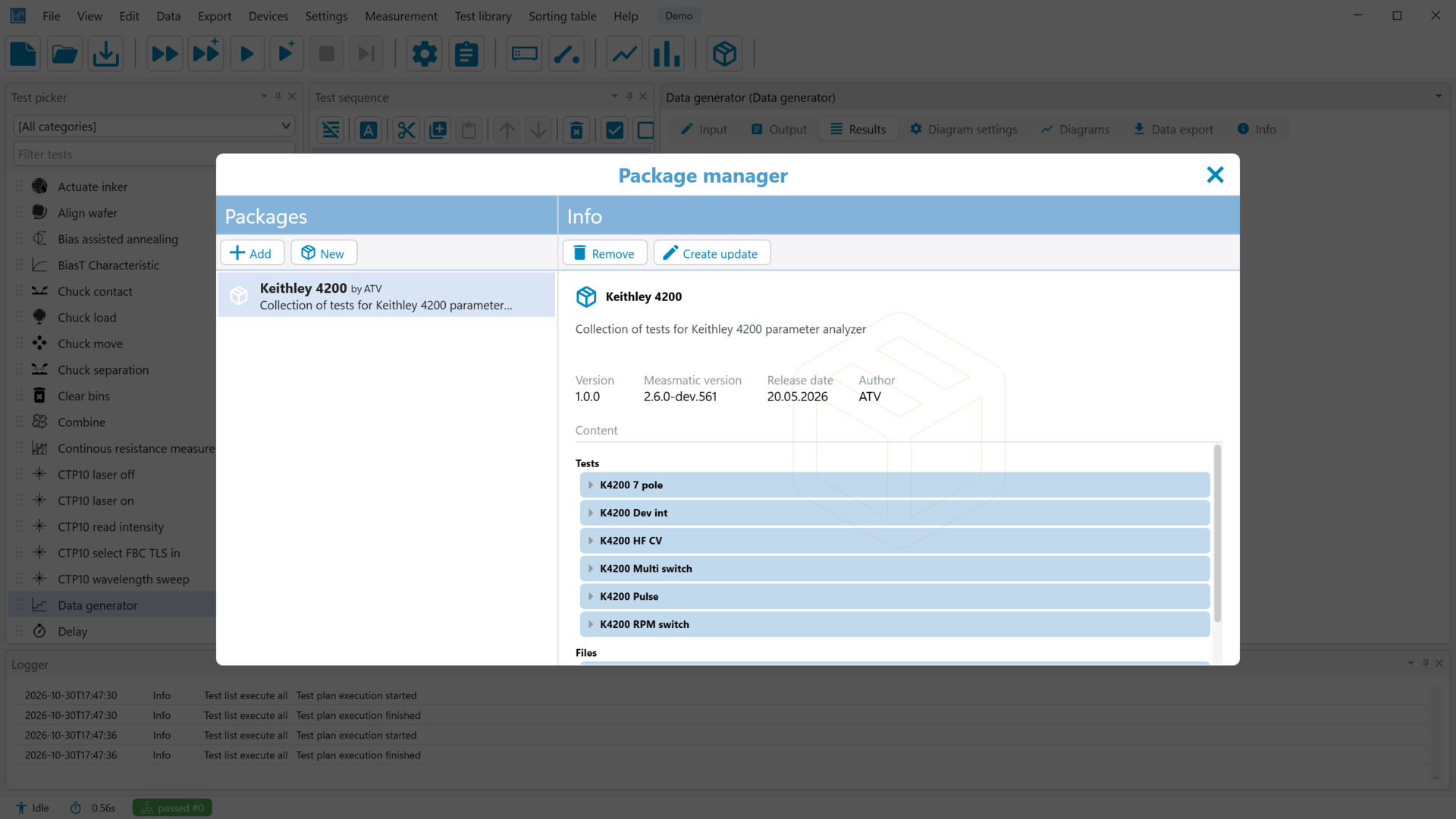
Package manager
| Button | Description |
|---|---|
| Add | Selects a package file (*.mmpkg) and installs it (see installing a package) |
| New | Opens the package creator to create a new package (see creating a package) |
| Remove | Uninstalls the selected package |
| Create update | Opens the package creator with the content of the selected package to create a new version of the package |
Table: Package manager
Installing a package#
After a package file has been selected, Measmatic shows its meta data and content together with the target files of each content item. Every item is validated before the installation, and possible conflicts are shown, for example:
- File already exists
- A newer version of this content is already installed
- The same version of this content is already installed
If a module is already installed in another version, the user can choose to keep the installed version.
The installation is started with the Install button. Installed tests are available in the test library right away.
Packages can be created for one-time or continuous deployment. Packages with continuous deployment are listed in the package manager after their installation and can be updated or removed there. Packages with one-time deployment (e.g. created from a single test) only install their content and are not listed in the package manager.
Creating a package#
The package creator consists of two parts:
| Part | Description |
|---|---|
| Meta data | Name, version, author, description, release date, Measmatic version used to create the package and deployment type of the package |
| Content | Tests, projects, Python devices, export scripts and files contained in the package. Content is added with the corresponding buttons and removed with the remove icon |
Table: Package creator
If Python imports of the content cannot be included in the package, a warning lists these external imports.
The package file is written with the Publish button.
A package containing a single test can also be created directly from the test library by right-clicking the test and choosing Create package from test (see test library).